
In this guide we will cover the commands which will enable you to customize the radar in CS:GO the way you want.
If you go with the default radar settings, you won’t be able to see the whole map in-game. Professional players are keeping a constant eye on the radar (well not literally, but you get the point). The reason they do, is to watch where their teammates are positioned and where the enemies are – or where the enemy was last seen. An enemy is displayed as a red dot on the radar. A few seconds after an enemy disappear out of sight, a red question mark is displayed on the radar.
I have had so much use of being able to see the whole map on the radar. For example if I am on A and my teammates gets rushed on B but don’t have time to call it, you will notice right away on the radar. Also if someone on your team spots the terrorist with the bomb, the bomb will be displayed on the map, which is very useful.
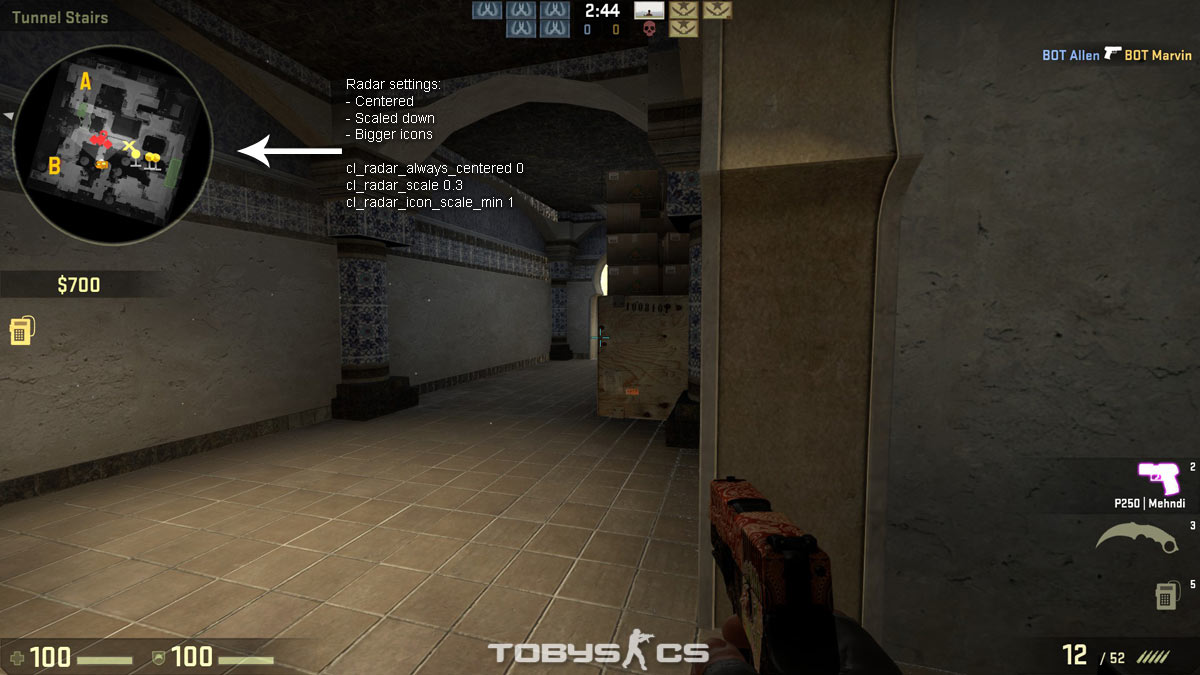
This screenshot shows what we want to accomplish, which is:
- A radar which is always centered.
- A radar where we can see the whole map.
- Bigger radar (HUD size).
- Bigger icons, so it’s easy to spot teammates/enemies on the map (optional).
- Basically a minimap of the whole map.
If you wonder how to change settings so the weapon is displayed like this, check out our viewmodel guide.
Lets move on to the actual settings. You will need to put the following in your own config or autoexec. We will go through each setting step by step. This way you will know what each setting do, so that you can customize the radar your own way if you want to. If you just want the settings, scroll down to the bottom where we have included all the settings in the last section of this article.
cl_radar_always_centered
First of all, we don’t want to have the radar centered at all time. When centered, you are wasting a lot of space on the radar when you are near the border of the map.
This is done with the command:
cl_radar_always_centered 0
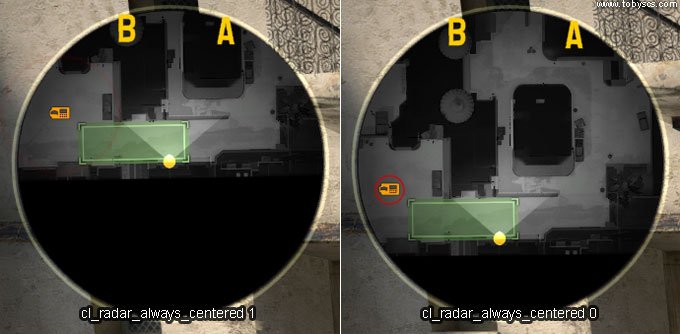
See how we are “wasting” half of the radar on black nothing. When not centered we are able to see more of the map.
cl_radar_scale
The next thing we want to do, is scale the map down, so we can see the more of the map on the radar.
Command:
cl_radar_scale 0.3
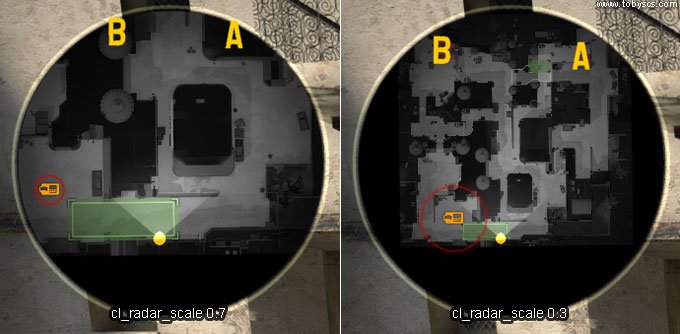
Before we couldn’t see the whole map. After the tweak, we can now see the whole map at all time. This is very useful when you are in the spawn, while some of your teammates are on A or B – no matter what you will always to be able to see where they are.
Zoom script
We have made a little zoom script, which makes it easy to zoom in and out on the radar, by just clicking on “+” or “-“.
Put this in your config or autoexec file:
// radar zoom in-out script
bind “KP_plus” “incrementvar cl_radar_scale 0.25 1.0 0.05”;
bind “KP_minus” “incrementvar cl_radar_scale 0.25 1.0 -0.05”;
Now you will be able to quickly adjust your radar zoom while being in-game.
cl_hud_radar_scale
When scaling the map down, we loose some of the details. To compensate for some of this, we can scale up the radar HUD.
Command:
cl_hud_radar_scale 1.15
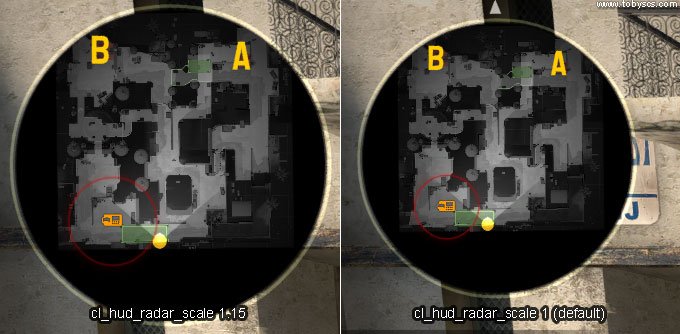
As you can see, the radar HUD is now bigger. I find that 1.15 to be the sweet spot between being able to see more details, and not taking up too much of the screen. Try experimenting with this setting yourself.
cl_radar_icon_scale_min
This step is optional, but I use it myself. It makes the icons on the radar bigger, which I find useful.
Command:
cl_radar_icon_scale_min 1
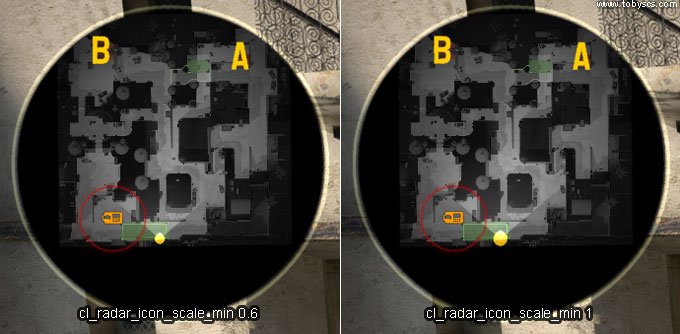
Final Radar Tweaking
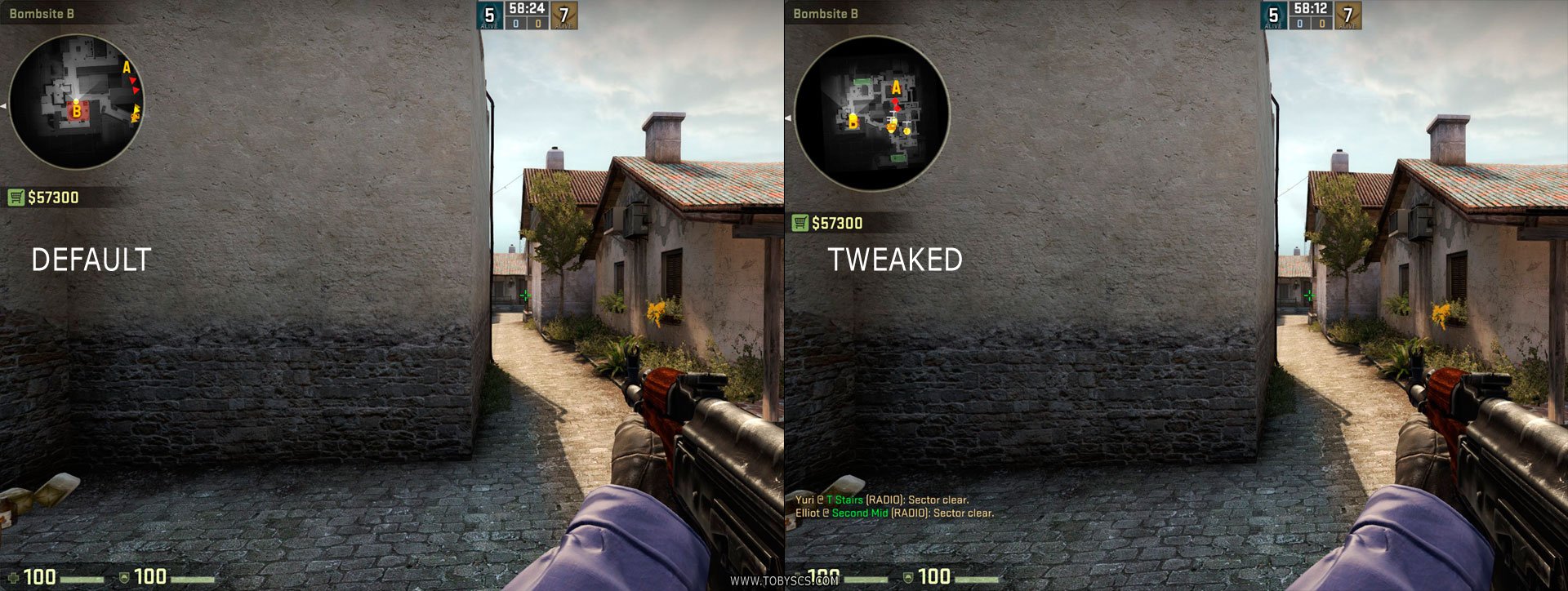
Now that we have tweaked our radar settings, we have a much more useful radar, where the whole map is displayed at all time. Check this comparison between the default settings and our tweaked radar settings:
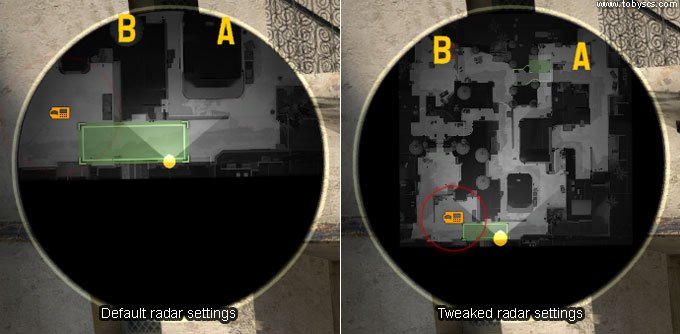
Pretty cool.
The only bad thing about the tweaked radar, is that the map is not very detailed, whereas when the scale is bigger, it is easier to see the map details. If you know the map well, this is not necessary though, at least in my opinion.
Optimized radar settings
cl_radar_always_centered “0”
cl_radar_scale “0.3”
cl_hud_radar_scale “1.15”
cl_radar_icon_scale_min “1”
cl_radar_rotate “1”
cl_radar_square_with_scoreboard “1”
Default radar settings
If you want to go back to your old settings, this is the default radar.
cl_radar_always_centered “1”
cl_radar_scale “0.7”
cl_hud_radar_scale “1”
cl_radar_icon_scale_min “0.6”
cl_radar_rotate “1”
cl_radar_square_with_scoreboard “1”
Other radar settings/commands
These commands are included in the final settings, but we are just using their default values. Here I will explain what they do.
cl_radar_rotate
If you don’t want the radar to rotate with you, you can turn off the radar rotation.
cl_radar_rotate 0 //off
 cl_radar_rotate 1 //on - recommended
cl_radar_square_with_scoreboard
When you press TAB to display the scoreboard, a big square radar will appear that shows you the whole map. If you want to turn this OFF, you can do so with this command.
cl_radar_square_with_scoreboard “1” //on – recommended
cl_radar_square_with_scoreboard “0” //off
TL;DR (too long didn’t read)
If you don’t want to read the whole article, but use the best radar settings, then we got you covered here.
Put these settings in your config or autoexec.cfg:
cl_radar_always_centered "0"
 cl_radar_scale "0.3"
 cl_hud_radar_scale "1.15"
 cl_radar_icon_scale_min "1"
 cl_radar_rotate "1"
 cl_radar_square_with_scoreboard "1"
//Radar zoom in-out script
 bind "KP_plus" "incrementvar cl_radar_scale 0.25 1.0 0.05";
 bind "KP_minus" "incrementvar cl_radar_scale 0.25 1.0 -0.05";
If you have any suggestions or something to add, please feel free to add a comment.
TL;DR dont u mean always cl_radar_always_centered “0”
yep should be cl_radar_always_centered “0”
Thanks broh best radar
Hi. is there a way to show it like when we open the leaderboard?
Nope
Bind your leaderboard key to the same one that makes the radar bigger/smaller
I use this for when im defusing or walking, which are the situations in which i need the radar more focused on the close vassinity of where i am. Once i stop pressing those it goes back to the full map view.
Just change my binds to “tab” or whatever is your leaderboard key.
alias “+radar” “+use; cl_radar_always_centered 1; cl_radar_scale 0.70”
alias “-radar” “-use; cl_radar_always_centered 0; cl_radar_scale 0.50”
bind “e” “+radar;”
bind “shift” “+radar”
Wow, thanks for giving me a great idea! I bound a key to make my radar scale much smaller so it shows the entire map. I like having a reasonably zoomed in radar but now I can hold mouse5 to check what is happening on the other side of the map. :)
very nice thank you i always wanted to make the map icons bigger but I thought they couldnt be …
how do we change it back to default?
Default settings:
cl_radar_always_centered 1
cl_radar_scale 0.7
cl_hud_radar_scale 1
cl_radar_icon_scale_min 0.6
One question, do I have to type those commands on the start of everygame? Sorry for the dumb question.
Thanks! :)
hey dude this is quite useful thanks lots
Just note: I have custom radars with the callouts so I use these two key binded radars…
bind “x” “cl_radar_always_centered 0;cl_radar_scale 0.8;cl_hud_radar_scale 1.5;cl_radar_icon_scale_min 1;cl_radar_rotate 0”
bind “z” “cl_radar_always_centered 0;cl_radar_scale 0.25;cl_hud_radar_scale 1.5;cl_radar_icon_scale_min 1;cl_radar_rotate 0”
I have 3 screens and the radar is on the far left of the left hand screen, is there anyway to move it onto the middle screen? It’s currently impossible to to keep my eye on the game and check the map at the same time.
yea, play like a normal person.
and then there’s this guy :P
Where is “KP_plus” and “KP_minus” ?
Your Key pad (side keyboard with all the numbers) plus and minus buttons
i dont have on of those
OK
This is really helpful ! thx
How can i remove the names above the radar?
Why are my people/enemies on my radar to big? Fix?
Just read the article, man…
cl_radar_icon_scale_min “0.6”
Adjust that…
What is the command what i can see on radar all the enemyes in single player?
alert()
tq
Where am I typing these commands? New to CS so can I get moderately detailed instructions on how to get there? Thanks.
EDIT: I figured it out
Just in case someone else is having this problem, you press the key below the Esc key in your keyboard. You have to first “Enable Developer Console” in settings
Thanks man
thanks.
Very good settings, much appreciated, thanks for awesome CS:GO guides! :D
Thank you very much! Works 100%
TF is this a radar for ants? have fun seeing nothing
For all the lazy people, copy and paste into command window
cl_radar_always_centered 0; cl_radar_scale 0.3; cl_hud_radar_scale 1.15; cl_radar_icon_scale_min 1; cl_radar_rotate 1; cl_radar_square_with_scoreboard 1
The keypad + – doesnt work for me. Any idea why? Numlock’s on already.